Getting started
Your first capture only takes a minute. Here is the implemented path from verified account to the app.
1. Create your account
Open app.emberel.com. Choose Continue with Google, or create an account with a verified email. Passwords require at least eight characters with uppercase, lowercase, number, and special-character coverage. Email accounts receive a one-time verification link before the first session is created. Sessions last 30 days per device.
2. See the onboarding pitch
After account verification, Emberel explains the capture-first loop before asking for optional profile or integration details.
3. Make your first capture — or skip
Type naturally in the onboarding capture composer, or skip and continue. Try something with a time in it:
Call the venue about the deposit Friday at 2pm
Emberel classifies and saves the result through the real capture path. After save, you can open/edit the created Spark or undo the capture. If one capture creates several Sparks, Emberel identifies all of them and the onboarding undo removes the set.
4. Add profile and time zone details (optional)
Add your name and time zone, or do it later. The time zone is how Emberel reads phrases such as “tomorrow at 9” correctly. Mobile/SMS setup remains hidden pending controlled activation tests for the approved campaign.
5. Connect Google (optional)
Approve the separate Google Calendar and Tasks permission now, or connect later from Settings. Google sign-in alone does not grant sync access.
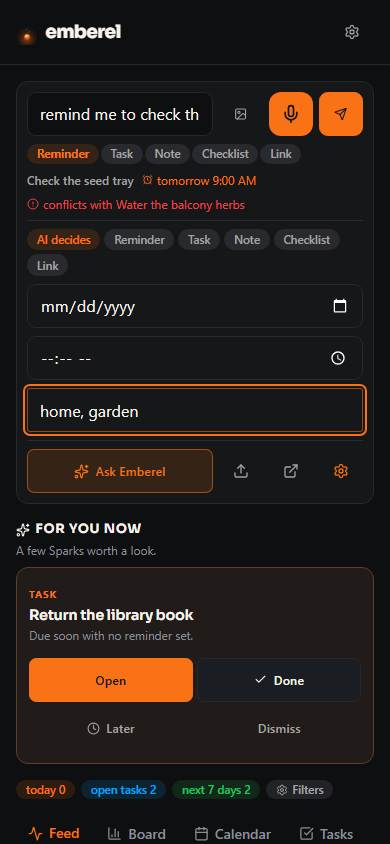
6. Enter the app and use the capture composer
- Type normally to capture.
- Start with
/to search everything you've captured. - Start with
?to ask — the in-app assistant answers from relevant Emberel context. - Hit Expand to open a full note editor for longer writing.
7. Know what counts as proof
The ?preview=1 tour is useful for screenshots, but it does not save an account, capture, or completion state. Real onboarding proof requires a controlled signed-in account using the actual save and finish paths.
8. Use the free public beta
No card is required, no subscription starts, and paid checkout is inactive. The SMS campaign is approved. SMS remains disabled pending controlled activation tests. See Plans & billing.